
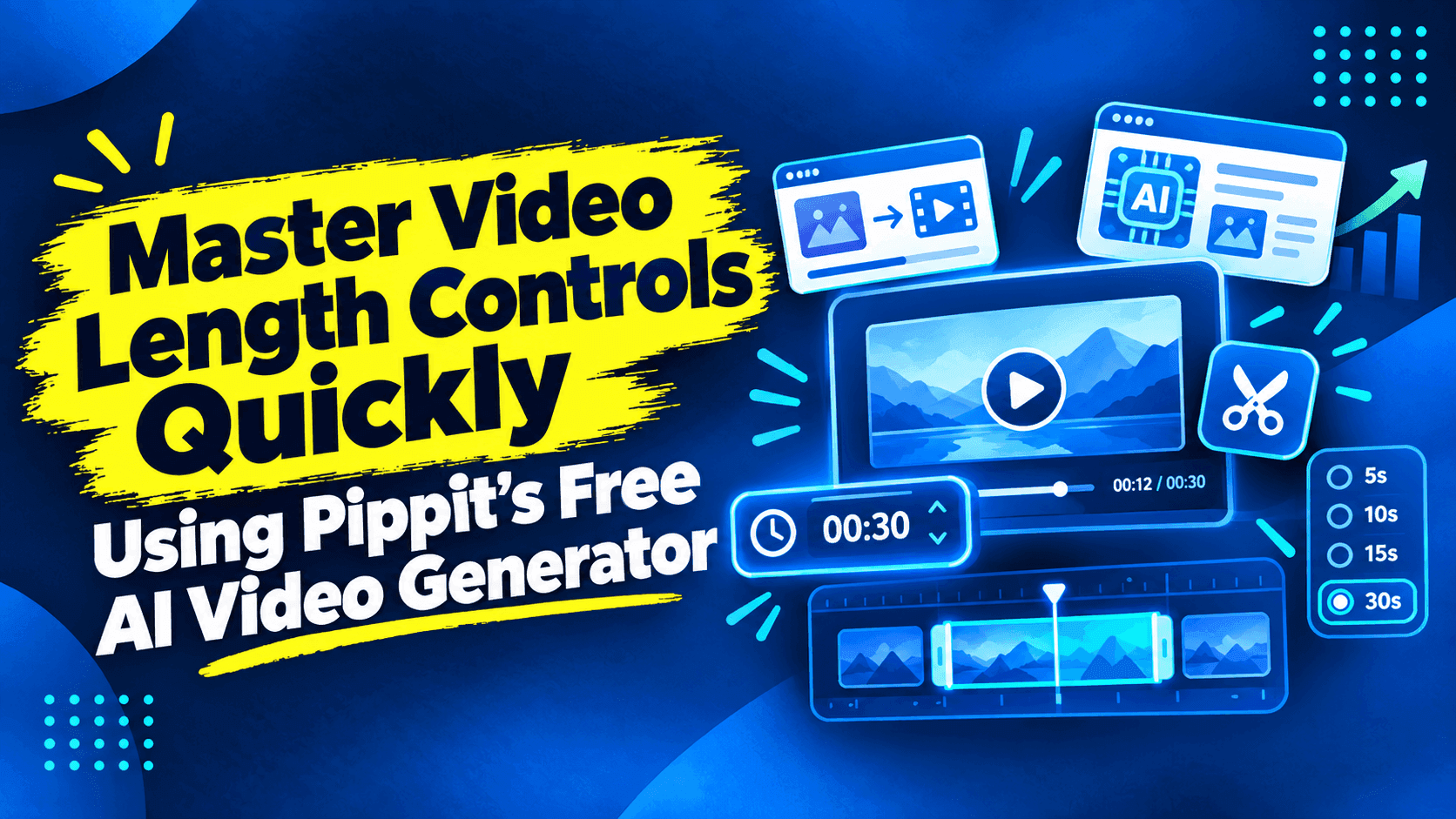
Quick Answer
The ideal video length depends on your content, audience, and publishing platform. Short promotional or social media videos may only need a few seconds, while tutorials, educational videos, and demonstrations often require more time. With Pippit’s free AI video generator, you can choose a target duration during generation and then edit or regenerate the video if the pacing feels too fast, too slow, or unnecessarily long.
Introduction
Video length affects more than the runtime of a finished video. It also changes the pacing, information density, viewer experience, and whether the content fits the platform where you plan to publish it.
A short product teaser may need only a few seconds to communicate its main idea, while an educational video may need more time for explanations, demonstrations, and examples. That makes choosing the right duration an important part of AI video creation.
Pippit’s free AI video generator provides a practical workflow for generating a video and then refining its length, pacing, captions, visuals, and other elements. Instead of treating duration as an afterthought, you can use it as a constraint when planning the video’s structure.
If you are already exploring different AI tools for content creation, our guide to AI and productivity tools also covers how AI fits into practical content and SEO workflows.
Why Video Length Matters
A short video needs a more compact script because there is less time to communicate the main idea. An AI video generator can help you structure content around a set duration and the intended viewing experience.
Longer videos give you more room for:
- Context and background information
- Product demonstrations
- Step-by-step explanations
- Examples and supporting details
- Smoother transitions
- More deliberate storytelling
However, adding more seconds does not automatically make a video better. Extra runtime can become distracting when it is filled with repetition, unnecessary transitions, or decorative scenes.
The number of scenes, narration speed, captions, visual changes, and transitions all influence how long a video feels to the viewer. A short video with frequent scene changes can feel energetic, while the same amount of information presented through slower scenes can feel more deliberate.
The goal is simple: the runtime should match the amount of information the viewer actually needs.
Plan Your Video Length Before Generating
Before opening an AI video generator, start with the message you want the viewer to remember.
Ask yourself:
- What is the main point of the video?
- Which details are necessary to explain it?
- Does the viewer need an example or demonstration?
- Where will the video be published?
- How much time does the audience need to understand the message?
For example, a short product announcement usually needs less time than an instructional presentation. A product video may only need to introduce a few important features, while a tutorial may require additional time for demonstrations and explanations.
Pippit can then use the selected duration as part of the generation process. With AI models such as Seedance 2.5, you can generate video content based on your prompt and planned structure. Concise prompts can also help prevent unnecessary story development and keep the generated scenes focused on the intended message.
How to Control Video Length With Pippit’s Free AI Video Generator
Pippit combines generation with editing and regeneration, so you can start with an AI-generated draft and refine it afterward.
Step 1: Set Your Video Length
Start by creating your video in Pippit.
- Sign up for Pippit using your Google, TikTok, or Facebook account.
- Open More from the left-side menu.
- Select Video generator.
- Choose an available AI model.
- Enter a detailed prompt describing the video you want to create.
- Select the video length, language, subtitles, and aspect ratio.
- Click + to upload reference images or videos from your device, phone, Dropbox, or a link.
- Click Generate.
The available model options and interface can change over time, so the exact choices shown in your account may differ from the workflow above.
The important part is to select the intended duration before generation rather than trying to force the finished video into a specific length afterward.
Step 2: Generate and Check the Duration
Once you click Generate, Pippit creates a video based on your prompt and reference media.
The generated video can include elements such as:
- Transitions
- Narration
- Captions
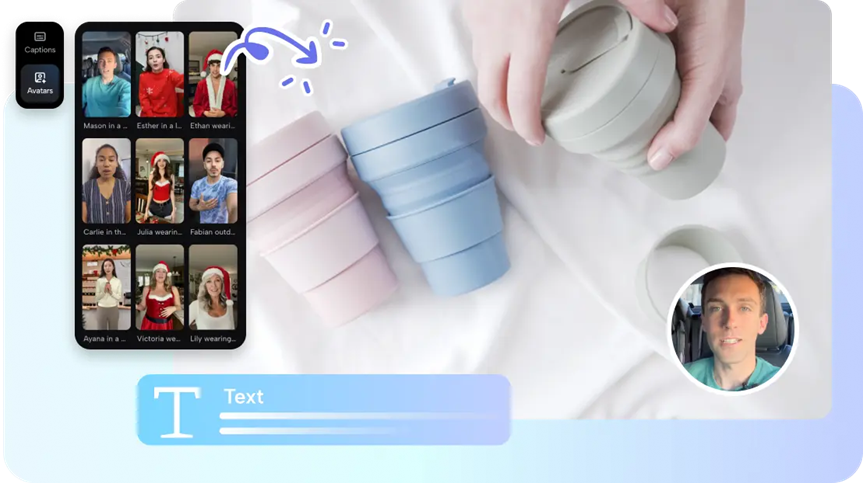
- Avatars
- Voice
- Visual enhancements
- Scene changes
Do not immediately export the first result.
Watch the complete draft and check whether the pacing matches the message. A video can technically have the correct runtime while still feeling too fast or too slow.
Pay attention to:
- How quickly scenes change
- Whether narration feels rushed
- Whether captions remain readable
- Whether important information gets enough time
- Whether transitions add value
- Whether any scenes repeat the same point
Step 3: Edit, Regenerate, or Export
After reviewing the first version, Pippit gives you several ways to refine the result.
You can:
- Download the current version.
- Choose Regenerate if the overall structure needs a different approach.
- Select Edit more if the basic structure works but specific elements need changes.
- Edit captions and text.
- Adjust size, color, alignment, filters, and effects.
- Add background music or remove backgrounds.
- Fine-tune visual elements.
- Export the finished video.
You can also choose publishing options for platforms such as TikTok, Instagram, or Facebook, depending on the available export settings.
Match Video Length to Your Content Goal
There is no universal video length that works for every type of content. The right duration depends on what you are trying to communicate.
Quick Explainer Videos
Keep the focus on one central idea.
Remove details that do not help explain the main point. If the viewer can understand the concept without an additional example or scene, that extra material may not be necessary.
Course and Educational Videos
Educational content generally needs more room for concepts, examples, demonstrations, and transitions.
Instead of cutting everything to make the video shorter, make sure each important explanation gets enough time to be understood.
Product Videos
Product videos should introduce the features that matter most without spending too much time on information the viewer does not need.
A useful structure can be:
- Introduce the product
- Identify the problem
- Show the relevant feature
- Demonstrate the benefit
- Finish with the next step
Social Media Clips
Social clips generally benefit from concise messaging and clear pacing.
The viewer should be able to understand what the video is about quickly. Shorter scenes and focused captions can help maintain momentum without forcing unnecessary information into every second.
Story Videos
Stories need enough time for setup, progression, conflict, and resolution.
Trying to compress every story into an extremely short format can remove the context that makes the story understandable.
Recap Videos
A recap should focus on the key moments instead of repeating everything that happened.
The goal is not to reproduce the original content. It is to help viewers understand the important events quickly.
How to Fix a Video That Feels Too Long
A video does not necessarily feel long because its total runtime is excessive.
Sometimes the problem is repetition.
A point may be explained in the narration and then repeated word-for-word in captions. Two scenes may communicate essentially the same information. A transition may also take up time without adding anything useful.
Start by looking for repeated information.
Then consider:
- Removing unnecessary statements
- Shortening repetitive captions
- Reducing unnecessary transitions
- Combining similar scenes
- Shortening scenes that do not carry important information
- Removing decorative visuals that do not support the message
Scene length also changes perceived pacing. Longer scenes can provide breathing room, while shorter scenes can create more momentum.
Pippit’s editing tools allow you to adjust captions, text, effects, music, backgrounds, and other visual elements without necessarily rebuilding the entire video.
Add More Time When Important Information Feels Rushed
The opposite problem can happen too.
A video may contain the right information but move too quickly for viewers to understand it.
Common signs include:
- Captions changing too quickly
- Narration moving faster than comfortable
- Demonstrations ending before the viewer understands them
- Too many ideas being presented in one scene
- Important explanations being compressed into a few seconds
When that happens, adding more decorative scenes is not necessarily the answer.
Instead, give additional time to moments that explain, demonstrate, compare, or clarify something important.
Synchronization also matters. The narration, captions, and visuals should support the same message rather than competing for attention.
Watch the complete video at normal speed and ask whether you can comfortably read each caption and understand the narration without pausing.
When to Edit and When to Regenerate
Editing and regeneration solve different problems.
Edit the existing video when the overall structure works but individual elements need improvement.
For example, you may only need to:
- Change a caption
- Adjust a visual
- Modify an effect
- Change background music
- Improve scene timing
- Correct text alignment
Regenerate the video when the overall structure is the problem.
A new generation can change the organization of scenes, pacing, storytelling approach, and visual interpretation.
This distinction can save time. There is little value in repeatedly making small edits when the underlying structure does not communicate the message properly.
Similarly, there is no reason to regenerate an entire video when one caption or visual element simply needs adjustment.
Don’t Confuse Video Quality With Video Length
Resolution and frame rate affect how a video is delivered, but they do not solve a pacing problem.
Increasing the resolution will not make a rushed explanation easier to understand. Changing the frame rate will not fix repetitive scenes.
Review the content itself first.
Go through the video from beginning to end and evaluate:
- Scene timing
- Narration
- Captions
- Demonstrations
- Transitions
- Pauses
- Information density
The objective is not to make the video “long enough.” The objective is to give every important part of the message enough time while removing anything that does not contribute to it.
This is similar to evaluating other AI content tools: the important question is not simply whether a tool can generate something, but whether its output fits the actual workflow. Our review of Unlucid AI is another example of looking beyond a tool’s basic generation capability and examining how its features fit a real use case.
A Simple Video-Length Checklist
Before exporting an AI-generated video, run through this checklist:
- Does the opening communicate the topic quickly?
- Is the main message clear?
- Does every scene contribute something?
- Is the narration easy to follow?
- Are captions readable at normal playback speed?
- Are important demonstrations given enough time?
- Are any points repeated?
- Are transitions helping the story?
- Does the runtime fit the publishing platform?
- Would removing a scene make the video clearer?
- Would adding a few seconds make an important explanation easier to understand?
If you can answer these questions confidently, the video is probably closer to the right length.
Final Thoughts
Video length should be treated as part of the communication strategy, not just a technical setting.
Start by deciding what the viewer needs to understand. Then choose a duration that gives the message enough room without adding unnecessary material.
Pippit’s free AI video generator provides a useful starting point by combining generation with editing and regeneration. You can create an initial draft, review its pacing, adjust individual elements, or regenerate the structure when the first approach does not work.
The most important step is still the review process.
A good video is not simply one that reaches a target duration. It is one where the narration, visuals, captions, transitions, and timing work together to communicate the intended message clearly.
When every second has a purpose, the finished video becomes easier to watch, understand, and remember.
Frequently Asked Questions
How do I choose the right length for an AI-generated video?
Start with the amount of information you need to communicate. Short announcements and social clips generally need less time, while tutorials, lessons, demonstrations, and stories may require more time.
Can I change the video length after generating it in Pippit?
Pippit allows you to edit and regenerate generated videos. You can also adjust captions, text, effects, music, backgrounds, and other visual elements during editing.
What should I do if my AI video feels too long?
Look for repetition first. Remove duplicate information, unnecessary transitions, repetitive captions, and scenes that do not contribute to the message.
What if my AI video feels too short?
Identify the information that viewers are struggling to understand. Give additional time to important explanations, demonstrations, comparisons, or visual examples rather than adding decorative scenes.
Does increasing video resolution make the content clearer?
Higher resolution can affect visual output quality, but it does not fix pacing or communication problems. If the narration is rushed or the message is unclear, changing resolution will not solve the underlying issue.
Should I edit or regenerate an AI-generated video?
Edit when the overall structure works and only individual elements need changes. Regenerate when the scene organization, pacing, or overall storytelling approach needs to change.

Usama Bin Qasim is an SEO expert and content writer with 6+ years of experience in SEO and digital marketing. He writes practical SEO guides, SaaS and software reviews, tool comparisons, and digital marketing content based on hands-on research and real-world experience.