
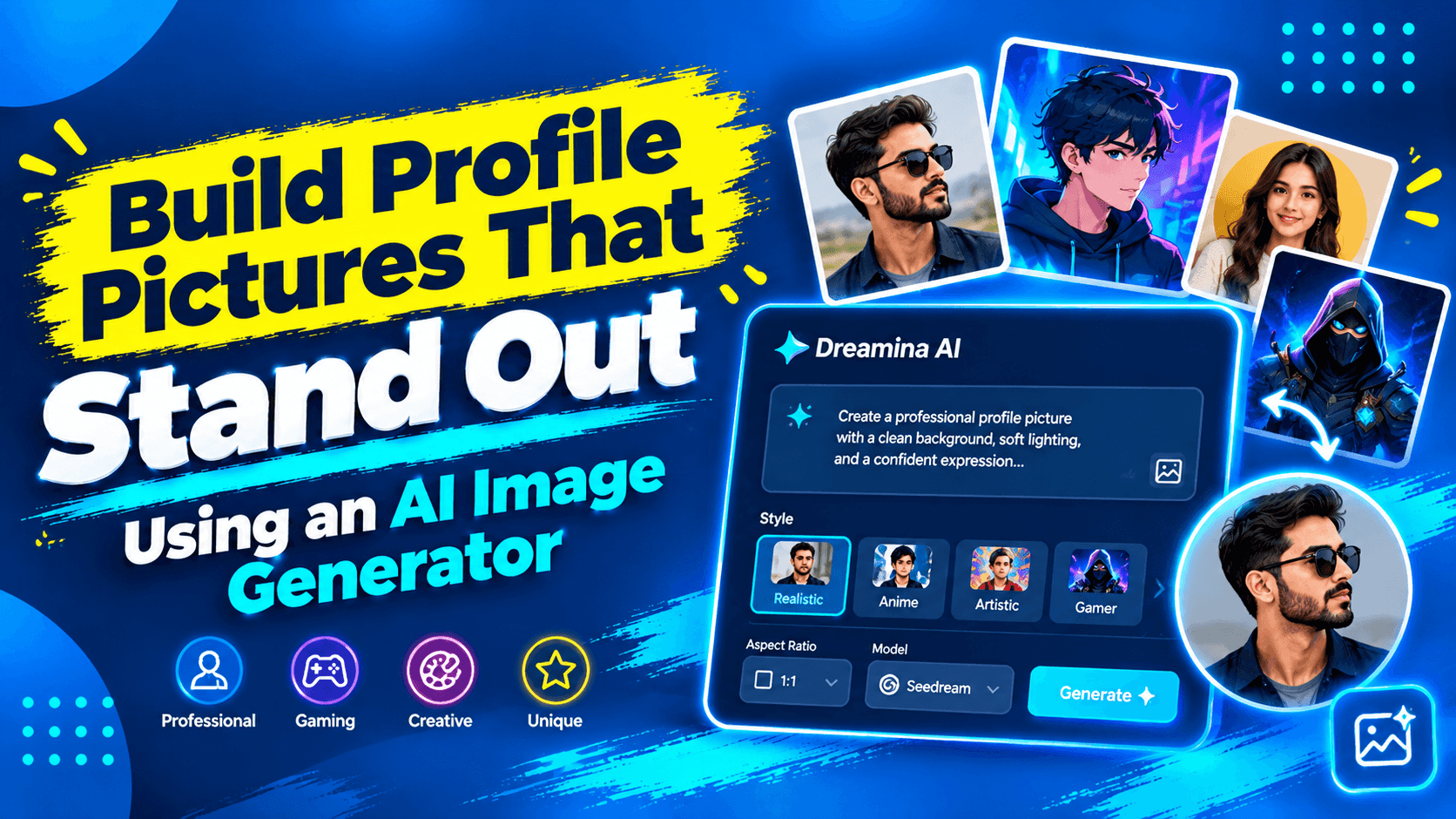
A profile picture provides an instant visual impression on social media, professional networks, creator accounts, and online communities. A portrait, when done correctly, can convey personality, aid in identification, and be appropriate to the context in which it is viewed. Dreamina AI is a tool that can assist in generating portrait ideas based on text prompts and reference images, supporting both realistic and artistic styles.
An Avatar’s appearance can be affected by lighting, expression, framing, and background. A professional headshot might need balanced lighting; a gaming profile might have imaginative colors and characters. Other creative options are anime drawings, movie portraits, and digital avatars. Before publishing a generated image, however, it is important to review details, natural proportions, and suitability of the face.
Choose a Profile Picture Style That Fits Its Intended Purpose
Always consider the location of the portrait and the message it will convey. Clean composition, restrained backgrounds, and balanced lighting are all important aspects of professional portraits. Creator avatars can have unique colors and easily recognizable visuals, and gaming avatars are good for fantasy characters and dramatic artwork. Artistic identities can be watercolor, surrealistic, or cinematic. Expressiveness and clear subjects are a good choice for community profiles. Portrait images should complement existing colors and presentation and be associated with the brand. Dreamina AI offers various visual directions, enabling creators to craft portraits that resonate with their context and not the one-size-fits-all approach.
The Portrait Details That Make an Avatar Recognizable
An avatar is recognizable, and the face is properly positioned and visible after cropping. If you are trying out an AI image generator free online, focus on how the face is positioned, the lighting, expressions, and the separation of the background from the subject, in addition to the style of the image. The soft lighting can highlight the face’s features without creating harsh shadows, and the expressions—whether a smile or a look of thought—can convey a specific mood. Hairstyles, clothes, accessories, and matching colors add more contrast. Make backgrounds unobtrusive in order to highlight the subject matter. While Dreamina AI offers diverse portrait ideas, check face proportions, eye placement, hairlines, etc. before choosing the final image.
Write Better Prompts for Realistic and Stylized Profile Pictures
Effective prompts will describe the subject, expression, artistic style, lighting, framing, and background. Indicate if they would like the portrait to look like a photo, anime, watercolor, or digital illustration. Use a coordinated color palette and select a headshot, shoulders, or wider framing based on the intended use. Appearance and composition can be guided by reference images where available. Try to avoid too much scenery and do not have too many unrelated objects that will take away from the face. For instance: “A head and shoulders shot of a polished, softly lit portrait with a muted teal background and a natural face shape and expression, and centered composition.” Clear visual priorities are communicated in this structure, subject to the results generated.
Steps to Build Profile Pictures That Stand Out Using an AI Image Generator
Step 1: Sign In and Describe Your Profile Look
- Sign up or log in to Dreamina to begin designing your profile picture.
- Click the “Create” tab in the left menu and choose the “AI Image” option.
- Write a detailed text prompt about the profile picture style you want to create.
- Add image elements, theme, and concept, such as mood, outfit, or background.
Step 2: Select Your Model and Personalize the Details
- Find the image models at the bottom of the dialogue box and make a choice.
- Try Seedream, GPT Image, or Nano Banana to match your personal taste.
- Upload a reference image so your profile picture looks more precise and natural.
- Choose a square or custom shape from the “Aspect ratio” and “Resolution” tabs.
- Generate several options at once with the “Images to generate” tab.
- Set the exact size for your profile picture in the “Dimensions” tab.
- Add a name or short tagline using the “Draw text on image” tab.
- Click the “Generate” tab to create your profile picture drafts.
Step 3: Finalize Your Profile Picture and Download
- Dreamina presents the requested number of drafts for you to review.
- Tap “Edit prompt” or “Regenerate” if you dislike the results.
- Improve sharpness in your favorite option with the “Creative upscale” feature.
- Use “Retouch” to correct, clean up, or enhance details of the selected image.
- Apply “Remove” to erase background clutter, or use “Expand” to adjust your framing.
- If you want to generate a video of the generated image, you can use the “Generate video” tab
- Dreamina gives you complete freedom to edit your image the way you like.
- Click the “Download” tab at the top right to save the video file on your local device.
Explore Six Ways to Give a Profile Picture a Distinctive Look
Minimal and thoughtful adjustments ensure that portraits are easily identifiable and convey a sense of individuality. Try these methods in Dreamina AI and compare the results at smaller sizes.
- Cinematic lighting: Directional light with controlled shadows, but still showing the face.
- Color identity: Use a color palette that conveys a mood while not distracting from the face.
- Illustrated treatment: Discover an anime, painterly, or graphic style, but keep shapes recognizable.
- Background separation: Use a background that is different and uncluttered so that the subject is separated from other colors.
- Signature accessories: Include a meaningful jewelry item, unique clothing, or a recognizable hairstyle, but not too much.
- Framing variation: side-by-side comparisons of centered headshots, 3/4 portraits, and other angles to choose the best composition.
Fix Common AI Portrait Problems Before Downloading
Carefully examine the image that is created before making it public. Artificial expression features may need to be retouched, immediately adjusted, or regenerated. Often distracting backgrounds can be made better through object removal or easier composition directions. Inconsistent appearance may need more precise and clearer references and descriptions. If there is unbalanced framing, composition adjustments or “Expand” (where available) may be beneficial. Look for skin, hair, and clothing that is too smooth or has odd textures. Last, but not least, check out the portrait at the intended display size. Some defects are not correctable locally, but require another generation.
Prepare the Finished Profile Picture for Different Platforms
Using a square source image will give you flexibility in many common places where you can use a profile picture. But circular crops can take out hair, shoulders, accessories, or details that are near the edges. Make sure the major facial elements are within a comfortable central area. A high-resolution master image also helps maintain clarity when platforms resize portraits to fit various screens. Depending on the platform requirements, the uploaded file may be smaller after processing. Before you upload your portrait, be sure to review the current image size, upload limits, and publishing policies. Always check the final crop on the platform that will be used, if practical.
Conclusion
A good profile photo has identifiable facial features, appropriate framing, expressive poses, and a cohesive background. Dreamina AI offers features to create and refine portraits, including prompts, references, and editing tools. Try out realistic photos, illustrated avatars, or cinematic approaches, and test proportions and image quality. In the end, the best avatar is one that’s easy to see at smaller sizes and is appropriate for the purpose.