

Twitter — now X — doesn’t give you a native download button. If you want to save a clip, you need a Twitter video tool that pulls the file from the tweet and saves it as an MP4 you can actually keep.
We tested the most popular options in 2026, from simple paste-a-link websites to full desktop apps with batch downloading and editing built in. Below are the 10 that are worth your time, what each one actually does well, and where it falls short.
Quick Comparison Table
| Tool | Type | Max Quality | Login Required | Editing Features | Price |
|---|---|---|---|---|---|
| SSSTwitter | Web | 1080p HD | No | No | Free |
| TWMate | Web | HD/4K | No | No | Free |
| SaveTweetVid | Web | 1080p | No | No | Free |
| Cobalt | Web + self-hosted | 4K (source-dependent) | No | No | Free, open source |
| X2Twitter | Web | Up to 4K | No | No | Free |
| yt-dlp | Command line | Original source quality | No | No | Free, open source |
| 4K Video Downloader Plus | Desktop app | Up to 8K | Optional | Basic (subtitles, audio tools) | Free tier; $15/yr–$45 lifetime |
| Wondershare UniConverter | Desktop app | Up to 4K | No | Full (trim, convert, compress) | Free trial; paid plans from ~$39.99/yr |
| TWDown.net | Web | 1080p | No | No | Free |
| curl-x | Web | 1080p | No | No | Free |
How We Picked These Tools
We looked at five things: whether the tool actually works with the current X.com URL structure, download quality, ad load, whether it asks for a login (a red flag for any legitimate downloader), and whether pricing claims match what’s on the vendor’s own site. Tools that require a Twitter password or feel malware-adjacent were left off this list entirely.
The 10 Best Twitter Video Tools in 2026
1. SSSTwitter — Best Free, No-Frills Option
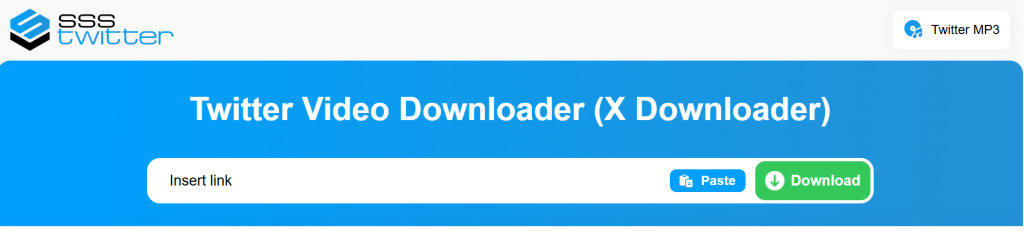
SSSTwitter is one of the longest-running names in this space and still one of the simplest. Paste a public tweet URL, and it returns dSSSTwitter is one of the longest-running names in this space, and it’s stayed simple on purpose. You paste the tweet link into a box on the homepage, hit the download button, and the site pulls the video straight from Twitter’s own servers. A few seconds later, you get a page with different quality options to choose from.
What makes it worth using is that it doesn’t try to be anything more than a downloader. There’s no sign-up screen, no app to install, and no confusing settings menu. It also works for more than just standard videos — it can grab GIFs and even recordings of Twitter Spaces broadcasts, which most competitors skip.
How it works, step by step:
- Copy the tweet link from the Share button on X.
- Paste it into the box on the SSSTwitter homepage.
- Wait a few seconds while it fetches the video from Twitter’s CDN.
- Pick your quality (usually a choice between a smaller file and full HD).
- Tap download and the MP4 saves to your device.
Key features:
- Works with both twitter.com and x.com links, so older bookmarked tools don’t suddenly stop working
- No login, no software install — everything runs in your browser
- Supports mobile and desktop browsers equally well
- Can also save GIFs and Twitter Spaces audio, not just standard video
Pros: Fast, free, no account needed, works on iPhone and Android browsers without any extra steps.
Cons: The site runs ads to stay free, so expect a banner or two. It’s download-only — there’s no way to trim, convert, or edit the file afterward.
Pricing: Completely free, with no paid version or premium tier.
Best for: Anyone who just needs a quick MP4 from a public tweet and doesn’t want to install anything.
2. TWMate — Best for GIFs and Photos Alongside Video
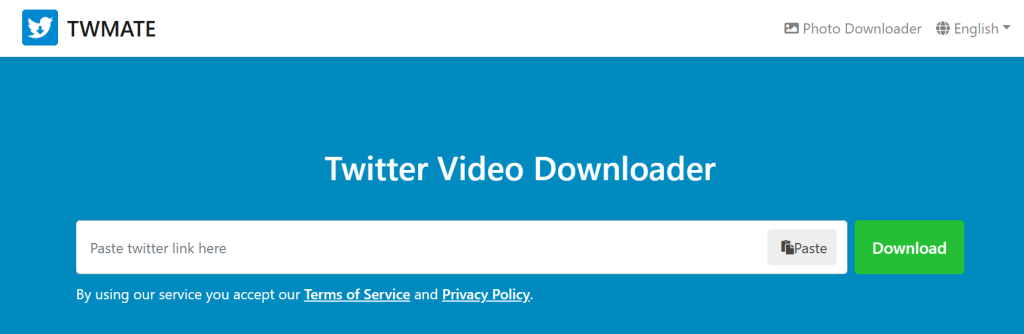
Most Twitter downloaders only handle standard videos. TWMate is built to catch everything a tweet might contain — video, GIF, or photo — and convert it into a file you can actually open and use, without you needing to know which format is which ahead of time.
The reason this matters: Twitter GIFs aren’t really GIFs. They’re short MP4 clips that just look like GIFs when they play. TWMate automatically detects this and converts them properly instead of giving you a broken or oversized file, which is a common problem with cheaper downloader tools.
How it works, step by step:
- Find the tweet with the video, GIF, or photo you want.
- Copy the tweet’s link.
- Paste it into TWMate’s input field at the top of the page.
- The tool detects what type of media is in the tweet automatically.
- Choose your format and download — no extra conversion step needed.
Key features:
- Automatically detects whether the tweet has a video, GIF, or photo, so you don’t have to pick the wrong tool
- Converts Twitter GIFs into proper MP4 files instead of oversized or broken formats
- Works on Android, iPhone by Apple, and desktop directly through the browser — no app needed
- No daily limit on how many files you can download
Pros: Genuinely free with no download cap, a clean interface that’s easy for beginners, and reliable speed even during busy hours.
Cons: Like every tool on this list, it can’t access private or protected accounts — that’s a Twitter restriction, not a TWMate limitation.
Pricing: Free, with no premium plan currently offered.
Best for: People who regularly save a mix of tweet videos, reaction GIFs, and images, not just standard clips.
3. SaveTweetVid — Best Mobile Experience
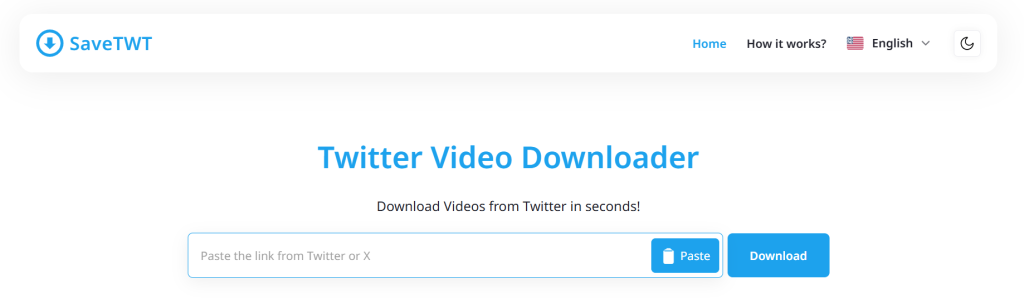
If you’ve ever tried to use a downloader site on a small phone screen, you know the problem: tiny buttons, ads that look like download links, and a layout clearly designed for a desktop monitor. SaveTweetVid fixes this by building its entire site around phone use first, with a desktop version as an afterthought.
The buttons are large enough to tap accurately, there’s a single clear “Download” action instead of five competing ones, and on iPhone the file saves directly into the Files app without extra steps or a separate app to install.
How it works, step by step:
- Open the X app and tap Share on the video’s tweet.
- Choose “Copy Link.”
- Open SaveTweetVid in your phone’s browser and paste the link.
- Choose either the video (MP4) or just the audio (MP3).
- Tap download — on iPhone it saves to Files, on Android it goes to your storage or Downloads folder.
Key features:
- Lets you extract just the audio as an MP3, not only the full video — useful for saving a podcast clip or voice tweet
- Layout built specifically for touchscreens, with larger buttons and less clutter
- Fewer ads than most competing downloader sites
Pros: One of the cleanest mobile experiences we tested, and the audio-only option is a genuinely useful extra most competitors don’t offer.
Cons: Video quality tops out at 1080p (fine for almost all Twitter content, since the platform rarely hosts anything higher). You’ll still see the occasional banner ad.
Pricing: Free, no paid version.
Best for: Anyone downloading mostly from their phone who wants the least cluttered, easiest-to-tap version of this process.
4. Cobalt — Best Privacy-Focused Option
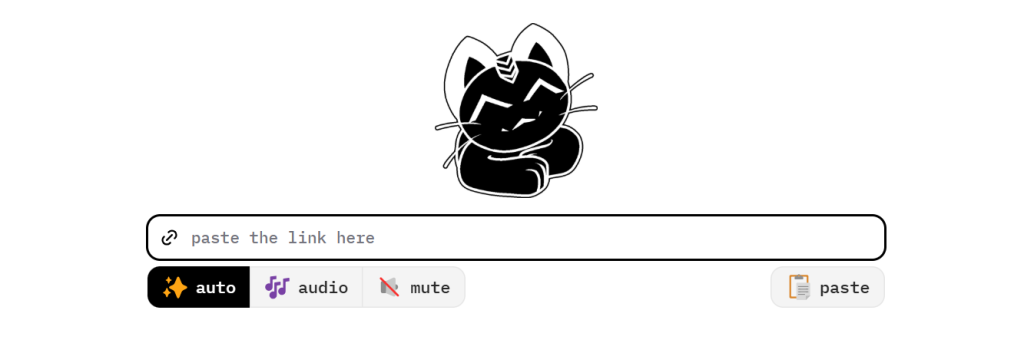
Most free downloader sites make their money from ads or by quietly tracking what you search for and download. Cobalt takes the opposite approach. It’s open source, meaning anyone can look at the actual code behind it on GitHub to confirm what it does and doesn’t do with your data. The team behind it states plainly that it doesn’t log downloads or track users, and true to that, the interface has no ads at all.
Beyond Twitter/X, Cobalt works with around 20 other platforms, including YouTube, TikTok, Instagram, Reddit, and SoundCloud, so it’s a useful one-stop tool if you download from more than just Twitter.
How it works, step by step:
- Copy the link to the public tweet, video, or post.
- Go to Cobalt’s website and paste the link into the single input box.
- Cobalt shows you the available formats and quality levels.
- Pick your preferred option and hit the download icon.
- If you want extra privacy, there’s a setting to route the file through Cobalt’s own servers instead of downloading directly to hide your IP address.
Key features:
- No ads, no account, and a stated no-logging policy you can verify in the public source code
- Can be self-hosted, meaning technical users can run their own private version on their own server
- Lets you pick format and quality before downloading, instead of forcing one default
- Supports around 20 platforms beyond Twitter, so it works as a general-purpose downloader too
Pros: By far the most privacy-respecting option on this list, and it’s actively maintained with new platforms added regularly.
Cons: Because it depends on how each platform’s website is built, support for some sites (YouTube in particular) has been less stable in 2026 than Twitter/X support. There’s no built-in editing — it’s a downloader only.
Pricing: Completely free, and self-hosting is free too if you have your own server.
Best for: Privacy-conscious users, and anyone who prefers a tool they can verify isn’t secretly tracking them..
5. X2Twitter — Best for Multiple Output Formats
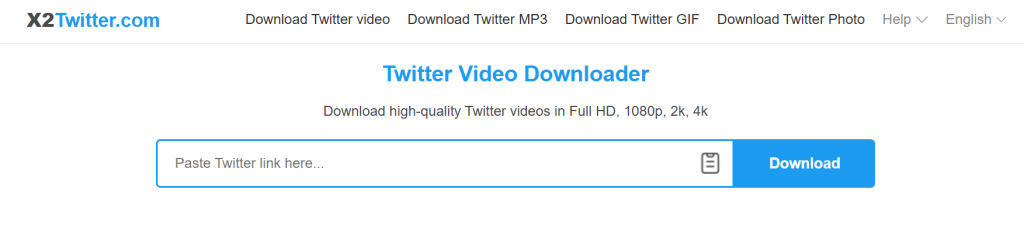
Most Twitter downloaders assume you only want an MP4 video file. X2Twitter assumes you might want something else entirely — maybe just the audio for a podcast clip, or a looping GIF for a meme you’re making. It gives you all three options from the same link, which saves you from bouncing between different tools depending on what you need that day.
Quality-wise, it advertises up to 4K, though how sharp your download actually looks depends entirely on how the original video was uploaded — Twitter compresses most video fairly aggressively, so 4K results are the exception rather than the rule.
How it works, step by step:
- Copy the tweet’s link from the Share menu.
- Paste it into the box on the X2Twitter homepage.
- Choose your output: MP4 (video), MP3 (audio only), or GIF.
- Select your quality level from the options shown.
- Click download to save the file.
Key features:
- Exports the same tweet as a video, an audio file, or a GIF — you choose the format that fits what you’re actually making
- Quality options up to 4K when the original tweet supports it
- No installation required, works from any modern browser
Pros: Genuinely useful if you regularly need more than a plain video file — for example, if you host a podcast clip series or make meme GIFs from tweets.
Cons: The site runs ads to stay free, and there’s no way to edit or trim the file after downloading — you’ll need a separate tool for that.
Pricing: Free, no premium tier.
Best for: Anyone who needs format flexibility — video, audio, or GIF — rather than a single MP4 download.
6. yt-dlp — Best for Technical Users Who Want Full Control
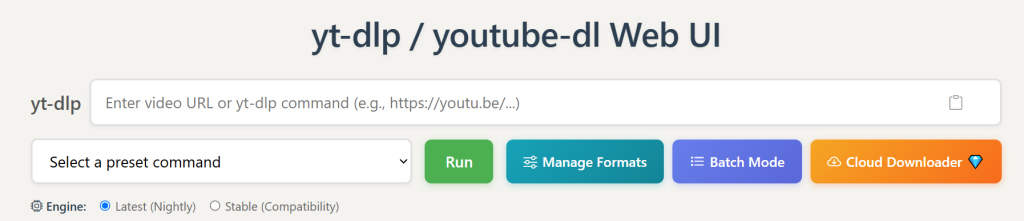
yt-dlp isn’t a website — it’s a small program you install and run from your computer’s command line (Terminal on Mac, Command Prompt or PowerShell on Windows). That sounds intimidating, but the actual usage is just one line of text: you type a command, paste the tweet link after it, and press Enter.
The reason it’s worth knowing about, even if you’re not a developer, is that yt-dlp is what a lot of the web-based tools on this list run behind the scenes to actually fetch the video. Using it directly means you skip the ads, skip the middleman website, and usually get the fix for a broken download faster, since a huge open-source community updates the tool constantly whenever a platform changes something.
How it works, step by step:
- Install yt-dlp (a short guide is on its GitHub page — it’s a single download for Windows, Mac, or Linux).
- Open Terminal or Command Prompt.
- Type
yt-dlpfollowed by a space and the tweet’s URL. - Press Enter — the video downloads to the folder you’re currently in.
- For more control (like picking quality or downloading many links from a list), you add extra flags after the command, which are documented on the project’s GitHub page.
Key features:
- Downloads at the video’s original source quality — there’s no artificial cap like some web tools apply
- Can process a whole list of links in one go (batch downloading), instead of one at a time
- Updated frequently by an active open-source community, so it tends to keep working even after a platform makes changes
Pros: Completely free, zero ads, zero tracking, and generally the most reliable option on this list when a web-based tool suddenly stops working.
Cons: You need to be comfortable typing commands — there’s no visual interface, so it’s not the right starting point for casual, non-technical users.
Pricing: Free and open source, with no paid version.
Best for: Developers, researchers, and anyone who’s downloaded software from a command line before and wants the most dependable option available.
7. 4K Video Downloader Plus — Best Desktop App for Batch Downloads

This is a real program you install on your computer, not a website. It’s the actively maintained follow-up to the original 4K Video Downloader, which the company officially shut down in February 2026 — so if you see the old version mentioned anywhere, know that it’s outdated and no longer supported.
The point of a desktop app like this is volume. If you’re saving one tweet a month, a website is fine. But if you’re pulling down dozens of videos a week — from Twitter and other platforms — this app is built to handle that without you repeating the same steps over and over. A feature called Smart Mode remembers your preferred quality and format, so every future download uses the same settings automatically.
How it works, step by step:
- Download and install the app from the official 4kdownload.com site (Windows, Mac, or Ubuntu).
- Copy the tweet or video link you want.
- Click “Paste Link” inside the app — it detects the link automatically.
- Choose your format, quality, and save location (or let Smart Mode apply your saved preferences).
- The app downloads the file directly into its built-in library, organized by type.
Key features:
- Batch downloading lets you queue up many links at once instead of doing them one by one
- Smart Mode saves your preferred settings so you don’t have to reselect quality and format every time
- Can pull subtitles in over 50 languages if the source video has them
- Includes basic AI audio tools, like separating vocals from background noise
- Works with X/Twitter plus YouTube, TikTok, Facebook, Vimeo, and dozens of other sites, so it’s useful beyond just Twitter
Pros: Handles large download volumes smoothly, and the extra tools (subtitles, audio cleanup) go beyond what any web-based downloader offers.
Cons: The free version limits you to 10 downloads a day. Also, while the app advertises up to 8K quality, that depends entirely on the source — Twitter video is almost always capped at 1080p regardless of which tool you use, since that’s how the platform compresses uploads.
Pricing: Free tier available with daily limits; paid plans run about $15 a year for the Lite tier, or a one-time lifetime license around $25 to $45 depending on the feature tier.
Best for: People who download video regularly across several platforms, not just the occasional Twitter clip.
8. Wondershare UniConverter — Best for Downloading and Editing in One App
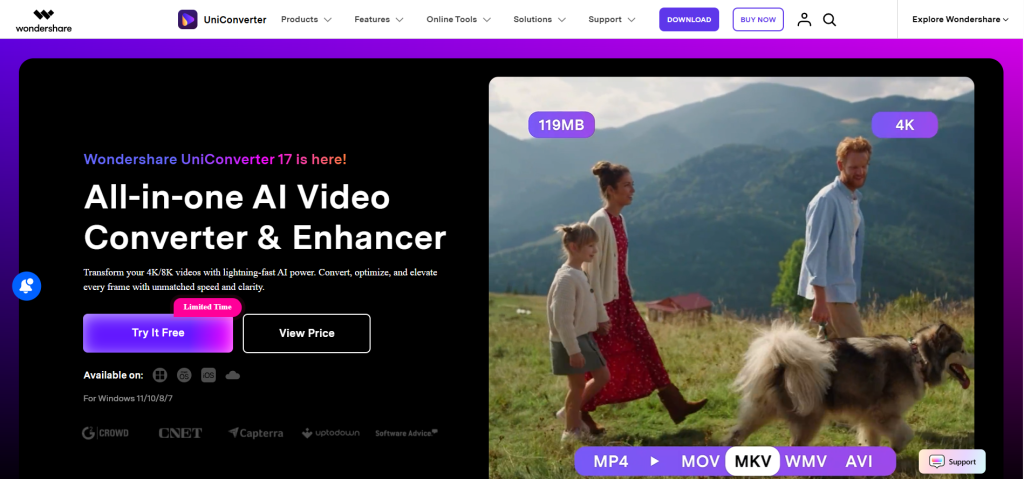
Every other tool on this list stops the moment your video is saved. UniConverter is the one exception — it treats downloading as just the first step, then gives you actual editing tools in the same window: trimming a clip down to the good part, converting it to a different format, shrinking the file size, or burning in captions.
This matters most if you’re a creator repurposing Twitter clips for other platforms. Instead of downloading with one tool and then opening a second app to edit, you do both in the same place, which saves real time if you’re doing this regularly.
How it works, step by step:
- Install the UniConverter desktop app (Windows or Mac).
- Paste the tweet link into the built-in downloader tab.
- Once downloaded, switch to the editing tab within the same app.
- Trim, convert, compress, or add captions to the clip.
- Export the finished file in whatever format you need for your next platform.
Key features:
- Downloads from more than 1,000 websites, not just Twitter — useful if you pull content from several platforms
- Built-in video trimming, format conversion, and file compression, all without a separate editing app
- Batch processing, so you can download and convert several links in one session
- Can add captions and burn in text directly onto the video
Pros: It’s the only tool here that combines a downloader with real editing features, which is a genuine time-saver if you’re repurposing clips for other platforms like TikTok or Instagram.
Cons: It’s paid software, and because it does more than a simple downloader, there’s a bit of a learning curve if all you need is a single quick download.
Pricing: A free trial is available to test the features; paid plans start at roughly $39.99 per year.
Best for: Content creators who need to download a clip and then immediately trim, convert, or repurpose it, rather than just save the raw file.p.
9. TWDown.net — Best for Simple Desktop Downloads
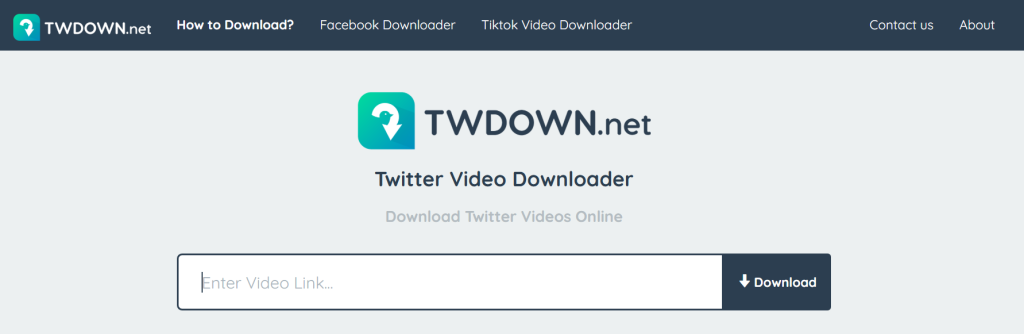
TWDown.net keeps things basic: paste a link, pick a quality, download. It’s usable on mobile but clearly built with desktop TWDown.net doesn’t try to add extra features — it does one job and keeps the process short. Paste the link, wait for it to process, pick a quality, and download. The whole thing usually takes under 15 seconds if the video is already publicly available.
It works fine on a phone browser too, but the layout feels like it was designed with a mouse and a bigger screen in mind, so the tap targets are a little smaller than mobile-first tools like SaveTweetVid or TWMate.
How it works, step by step:
- Copy the tweet’s link.
- Go to TWDown.net and paste it into the input field.
- The tool processes the link and shows a preview of the video.
- Pick your quality from the list (up to 1080p).
- Click Download to save the MP4.
Key features:
- Simple quality selector, showing every resolution available for that specific video, up to 1080p
- No installation or account needed — runs entirely in the browser
- Can also grab photos attached to a tweet, not just video
Pros: Lighter on ads than a lot of older downloader sites, and processing is noticeably fast. Cons: The mobile layout feels a bit cramped next to tools built specifically for phones, like SaveTweetVid or TWMate. Pricing: Free, no paid tier. Best for: Desktop users who want a fast, no-frills download with minimal clicking.
10. curl-x — Best New Minimalist Option
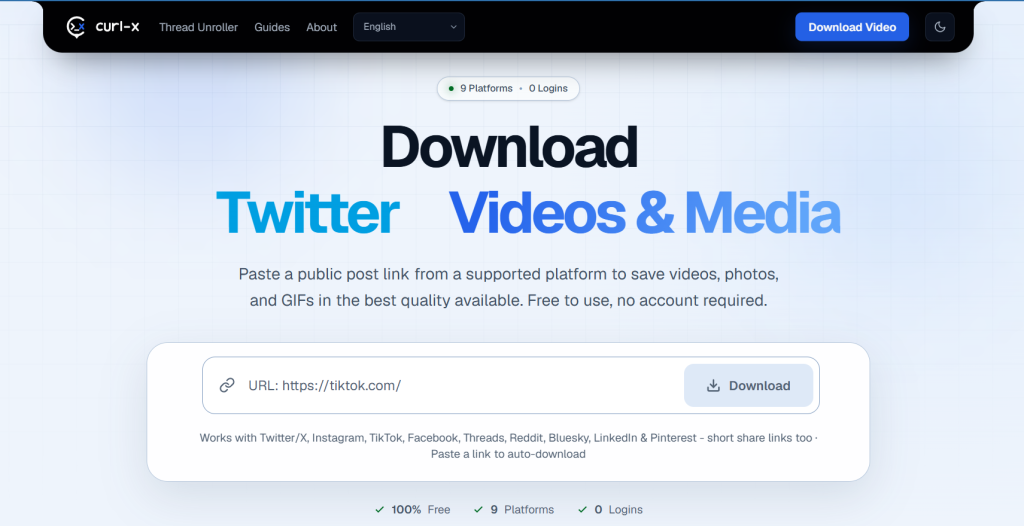
curl-x is one of the newer names on this list, and it was clearly built by people who were tired of cluttered downloader sites. The entire homepage is basically one input box and one button. Paste a link, click once, and the download starts — there’s no page full of ads to click through first.
Because it’s newer, it doesn’t have the years of traffic and reputation that a site like SSSTwitter has, but the team behind it has been upfront about how it works and what it does with your data, which is worth something in a category where a lot of sites feel sketchy.
How it works, step by step:
- Copy the tweet link from the Share menu.
- Go to curl-x and paste the link into the single input box.
- Click the download button.
- The tool fetches the video directly and gives you a save prompt.
- Choose where to save it on your device.
Key features:
- A clean interface with a much lighter ad load than most competitors
- No login or account required to use it
- Works with both twitter.com and x.com links
Pros: Refreshingly simple with almost nothing standing between you and the download — good for people who find other downloader sites overwhelming.
Cons: Being newer, its feature set is smaller than more established tools — it’s download-only, with no GIF or audio extraction yet.
Pricing: Free, with no paid tier.
Best for: Anyone who wants the fastest, least cluttered path from a tweet link to a saved file.
How to Choose the Right Twitter Video Tool
Match the tool to how often you’re actually downloading:
- A handful of clips a month: Use a free web tool like SSSTwitter, TWMate, or curl-x. No install, no cost.
- Frequent downloads across multiple platforms: A desktop app like 4K Video Downloader Plus pays off, especially with batch mode and Smart Mode.
- You also need to edit what you download: Wondershare UniConverter saves you from juggling two separate apps.
- You care about privacy and want an auditable tool: Cobalt is open source and doesn’t log your activity.
- You’re comfortable with a terminal: yt-dlp is free, ad-free, and usually the first tool updated when a platform changes something.
How to Download a Twitter Video (Quick Steps)
- Open the tweet containing the video on X or Twitter.
- Tap the Share icon and select Copy Link (or copy the URL from your browser’s address bar).
- Open your chosen Twitter video tool and paste the link into the input field.
- Select your preferred quality or format.
- Click Download and save the file to your device.
Is It Legal and Safe to Download Twitter Videos?
Downloading a public video for personal, offline viewing is generally low-risk, but reposting, reselling, or reusing someone else’s content without permission can violate copyright law and X’s own terms of service. Only download videos you own, have explicit permission to use, or that are clearly in the public domain.
On the safety side, no legitimate tool needs your Twitter password or login credentials. If a downloader asks you to log in, close it. Stick to tools that work directly from a public tweet URL, use HTTPS, and don’t require an account.
Frequently Asked Questions
What is the best free Twitter video tool?
For a one-off download, SSSTwitter, TWMate, and curl-x are all solid free options with no login required. For repeated, higher-volume downloading, yt-dlp is free and generally the most reliable long-term.
Can I download videos from a private Twitter/X account?
No. No legitimate downloader can bypass X’s privacy settings. Every tool on this list only works with public tweets.
Do these tools add a watermark to downloaded videos?
No. The tools listed here save the original file directly from Twitter’s CDN, so there’s no added watermark or branding.
What’s the difference between a web-based downloader and a desktop app?
Web tools like SSSTwitter or TWMate need no installation and work for quick, occasional downloads. Desktop apps like 4K Video Downloader Plus or Wondershare UniConverter are better suited to batch downloading, higher reliability, and extra features like editing or subtitle extraction.
Can I download Twitter videos on my iPhone or Android without an app?
Yes. Web-based tools work directly in your phone’s browser. Copy the tweet link from the X app’s share menu, paste it into the tool, and save the file to your Photos or Files app.
Is yt-dlp difficult to use for beginners?
Yes, relatively. It runs from the command line, so it suits developers and technically comfortable users more than casual downloaders. For most people, a web tool is the easier starting point.
Final Recommendation
If you only need to save a clip now and then, start with a free web tool like SSSTwitter or TWMate — there’s nothing to install and no cost. If you’re downloading regularly across several platforms, 4K Video Downloader Plus or Wondershare UniConverter are worth the price for the batch handling and extra features. And if privacy is your main concern, Cobalt is the most transparent option, since its code is public and it doesn’t log what you download.

Usama Bin Qasim is an SEO expert and content writer with 6+ years of experience in SEO and digital marketing. He writes practical SEO guides, SaaS and software reviews, tool comparisons, and digital marketing content based on hands-on research and real-world experience.

2 Reply on “10 Best Twitter Video Tools in 2026 (Tested, Free & Paid Options)”